 Overview
This article will instruct you on how to install and uninstall the VirtualShield VPN app on each of your various devices. Simply choose your device below to get started.
Our mobile apps can be downloaded directly from the Apple App Store or the Google Play Store, and the desktop apps can be downloaded from our website by following the steps below.

 Windows
  macOS iOS Android
In this section
 Install the Windows VPN
How to install VirtualShield VPN on your Windows computer:
Visit our Windows Download Page and click the Download button. Alternatively, you can use this link and the file will begin to download automatically:
Open the VirtualShieldSetup file you just downloaded. Unless otherwise specified, this file will be located in your Downloads folder.

To find this folder, click the

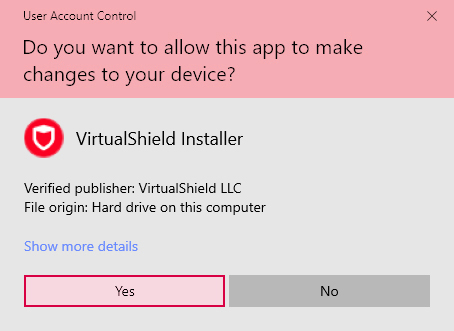
If you are prompted to allow VirtualShield to make changes to your device, choose Yes to continue.
The VPN Setup Wizard will now launch in a new window. Click Install to start the installation.
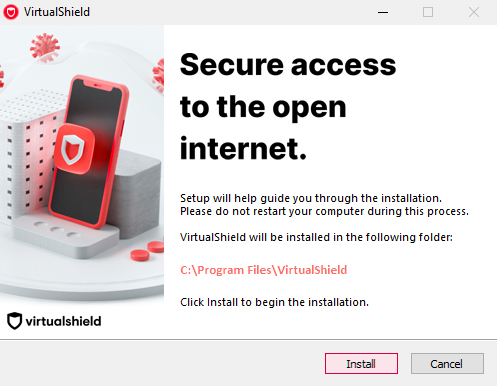
The wizard will now complete the installation. Do not attempt to close the wizard orpower off your device during this process.
 That’s it! The app will open automatically. You can also open it using the shield icon on your Desktop or Start menu, to log in and connect to our
  secure network.

For more help logging in and activating protection, see our support article.
 Uninstall the Windows VPN
How to remove VirtualShield VPN from your Windows computer:
Click the Start button, type “apps” in the search box and press Enter.

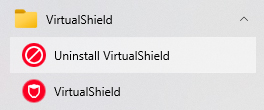
Find the VirtualShield VPN app in this list, then choose Uninstall.
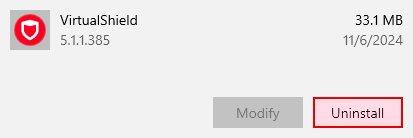
If you can’t find this option, open your Settings app and then uninstallApps category.
If you are prompted to confirm the uninstall, choose Yes to continue.
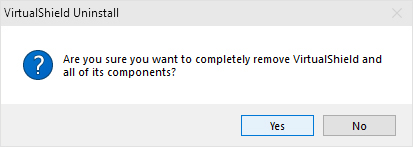
That’s it! The app has been uninstalled successfully. You can follow the same steps above to repair or reinstall the application on a different device.

If you have any questions or need any assistance
In this section
Install the macOS VPN
How to install VirtualShield VPN on your Mac computer:
Visit our macOS Download Page and click the Download button. Alternatively, you can use this link and the file will begin to download automatically:
Open the VirtualShield.pkg file you just downloaded. Unless otherwise specified, this file will be located in your Downloads folder.

To find this folder, open
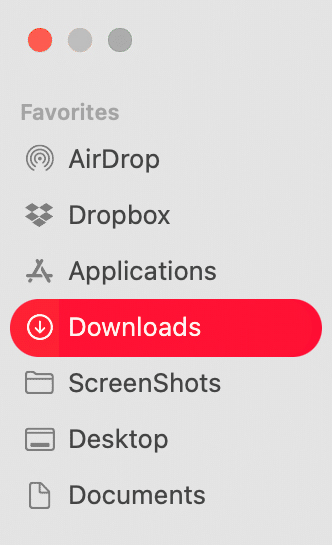
The VPN Setup Wizard will now launch in a new window. Click Continue to start the installation.
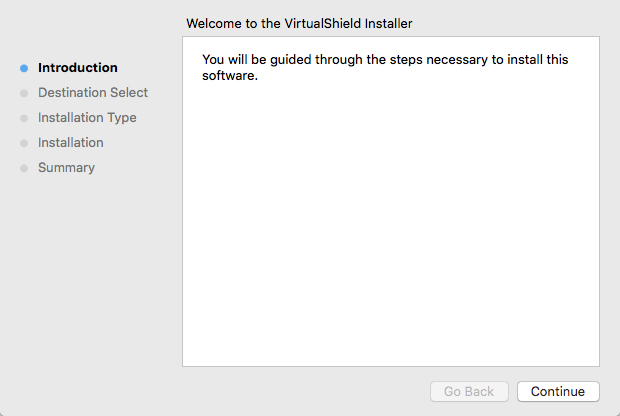
If you are prompted for your credentials, enter your computer’s password then click Install Software.
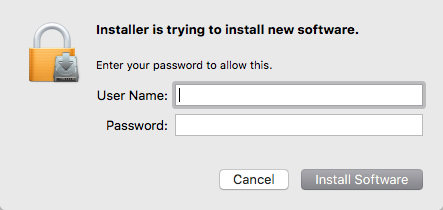
The wizard will now complete the installation. Do not attempt to close the wizard or
That’s it! The app will open automatically. You can also open it using the shield icon in your  Applications list or Launchpad, to log in and connect to our secure network.
For more help logging in and activating protection, see our support article.
Uninstall the macOS VPN
How to remove VirtualShield VPN from your Mac computer:
Open Finder in the Dock, and select Applications from the sidebar.
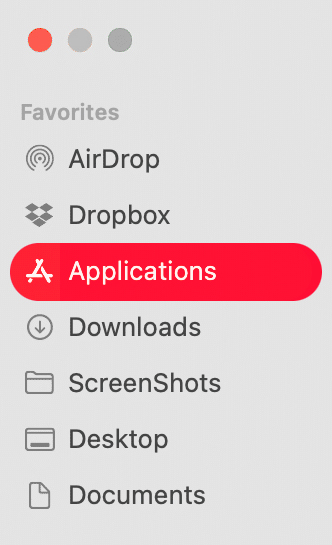
Alternatively, you can pressOption +
Command +
Space on your keyboard.
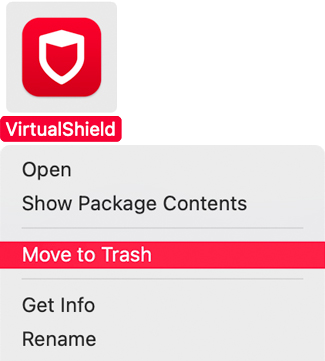
Find the VirtualShield VPN app in this list, then Control-click the icon and select Move to Trash from the popup menu.
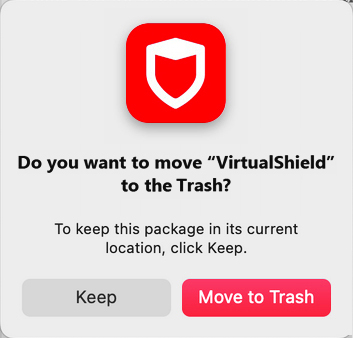
If you are prompted to confirm the uninstall, choose Move to Trash to continue.
If you are prompted for your credentials, enter your computer’s password.
That’s it! The app has been uninstalled successfully. You can follow the same steps above to repair or reinstall the application on a different device.
If you have any questions or need any assistance
In this section
Install the iOS VPN
How to install VirtualShield VPN on your Apple iPhone/iPad:
Visit our iOS Download Page and tap the Download button. Alternatively, you can use this link to download the app from the Apple App Store:
Apple iOS 16.0 or later is required to
Tap the Get button to start the installation. If iCloud is enabled on the device, it will look like a cloud icon.

If you are prompted to unlock your device, enter your touch ID/passcode.
Once the installation is complete, this button will say Open. Tap it to launch the application.
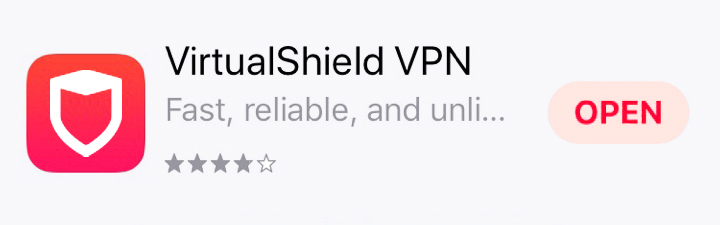
That’s it! You can also open the app using the shield icon on your Home screen or App Library, to log in and connect to our secure network.
For more help logging in and activating protection, see our support article.
Uninstall the iOS VPN
How to remove VirtualShield VPN from your Apple iPhone/iPad:
Open the Settings app on your Apple iPhone/iPad.

If you can’t find this icon,
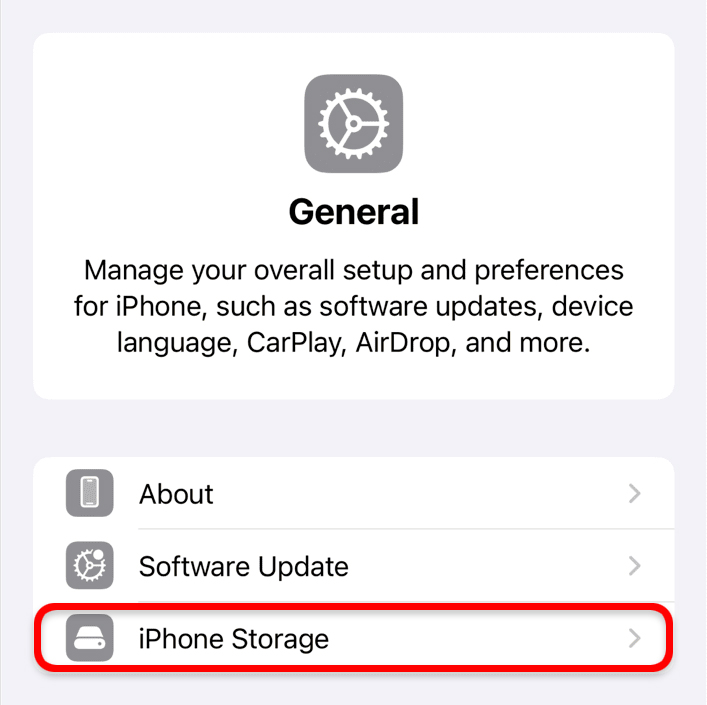
Navigate to General  iPhone/iPad Storage. A list of your installed apps will appear near the bottom of this screen.
Alternatively, you canswipe left past all of your Home screen pages to get to the
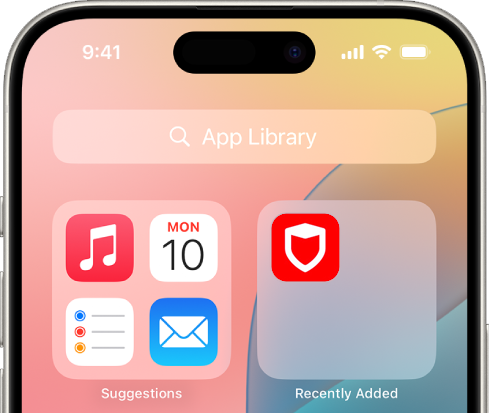
Find the VirtualShield VPN app in this list, then  long press the icon and choose Delete App from the popup menu.
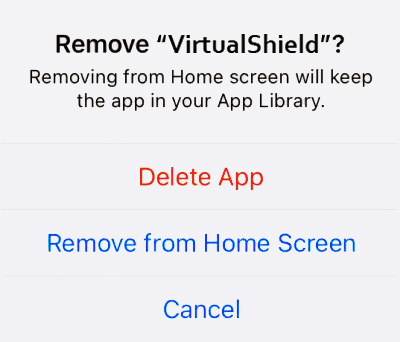
Removing an app from the Home screen keeps the app installed on the device, while deleting it removes the app and all of its data. See this Apple article for more information.
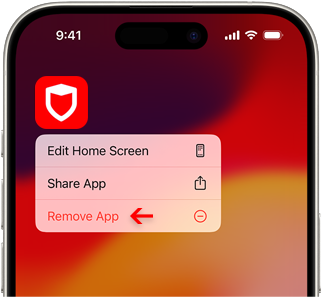
That’s it! The app has been uninstalled successfully. You can follow the same steps above to repair or reinstall the application on a different device.
If you have any questions or need any assistance
In this section
Install the Android VPN
How to install VirtualShield VPN on your Android phone/tablet:
Visit our Android Download Page and tap the Download button. Alternatively, you can use this link to download the app from the Google Play Store:
Google Android 7.0 or later is required to
Tap the Install button to start the installation.
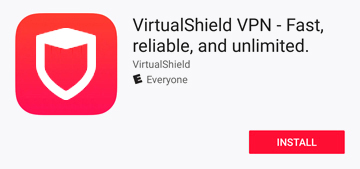
If you are prompted to unlock your device, enter your touch ID/passcode.
Once the installation is complete, this button will say Open. Tap it to launch the application.
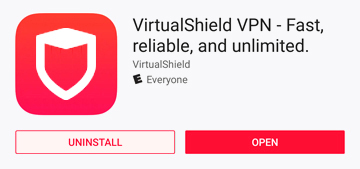
That’s it! You can also open the app using the shield icon on your Home screen or App Drawer, to log in and connect to our secure network.
For more help logging in and activating protection, see our support article.
Uninstall the Android VPN
How to remove VirtualShield VPN from your Android phone/tablet:
Open the Settings app on your Android phone/tablet.

If you can’t find this icon, ask Google to open your Settings.
Select Apps & notifications to expand the list of options.
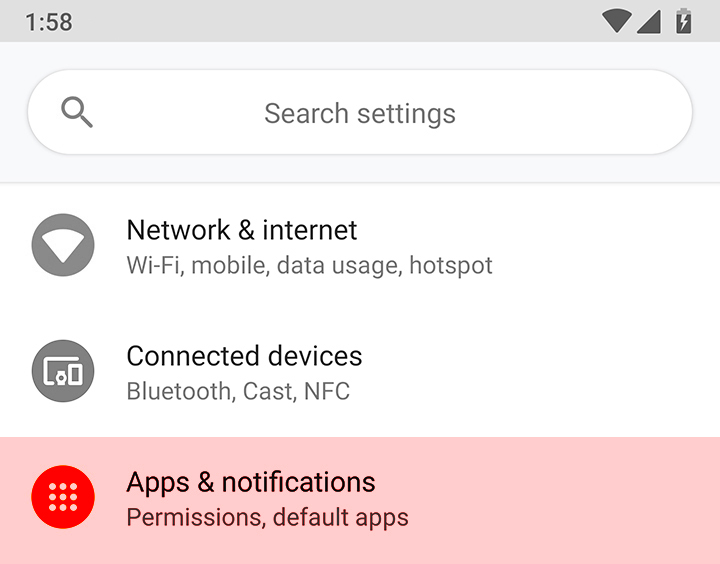
It may be labeled
Find the VirtualShield VPN app in this list, then tap it to open the App info screen.
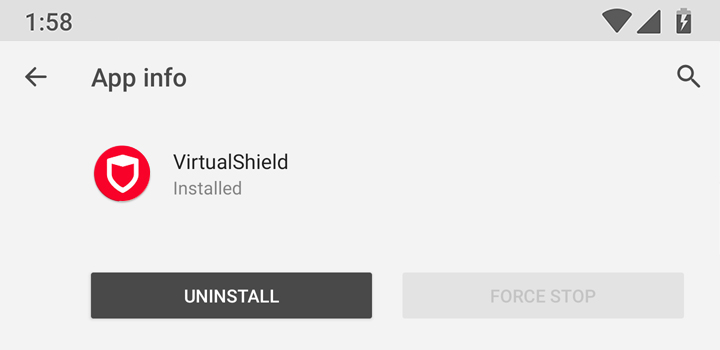
Alternatively, you can
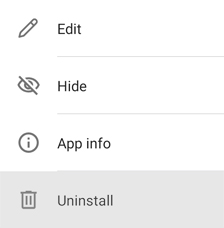
Tap the Uninstall button. If you are prompted to confirm the uninstall, choose OK to continue.
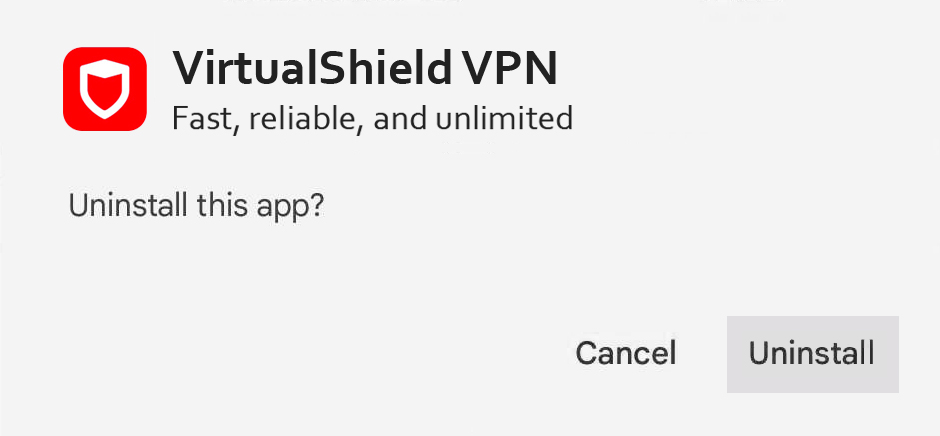
That’s it! The app has been uninstalled successfully. You can follow the same steps above to repair or reinstall the application on a different device.
If you have any questions or need any assistance
Common Questions
I can’t access the Google Play Store, what can I do?
If your device lacks access to the Google Play Store, it is likely that you can still use VirtualShield but you will need to download and install it manually. See our support article for more information.
Can I install the app on my Chromebook/Pixelbook?
Yes, you can! You might need to turn on the Google Play Store first, before you can install VirtualShield. See our support article for more information.
My device is too old to run the app, what can I do?
If your device is incompatible, we strongly recommend upgrading your Operating System to remain protected against the latest threats. See our support article for more information.