 Overview
This option will automatically re-connect to our servers any time you get disconnected unexpectedly. This adds another additional layer of security, by preventing any private information from leaking out across your public network without your knowledge or permission.
The VPN will also connect immediately upon launching the app, and when your device wakes up from Sleep/Hibernation mode. This setting is disabled by default, you must enable it yourself. We recommend enabling this option to be certain your network is always secure.
 Windows
  macOS iOS Android
Windows
This can happen for a number of reasons, including a weak signal, if your network changes, or if your device enters Sleep/Hibernation mode while the VPN is active. If you often switch networks or if you travel frequently, the app will instantly detect any time you get disconnected abruptly.
Once your network is established the connection will be immediately restored. This helps ensure that your location is private and your network remains secure at all times. Alternatively, you can choose to leave this option disabled if you would prefer to connect manually instead.
If used alongside the Keep Alive on Sleep option, you will also remain connected when your device enters Sleep/Hibernation mode.
 Connect Automatically
How to connect automatically on your Windows computer:
Open VirtualShield VPN and log in to your account, if you are not logged in already.
For more help logging in and activating protection, see our support article.
Select VPN from the sidebar, or click  Secure VPN on the
  Home/Overview screen.
Click the Settings button near the top-right to open the  VPN Settings panel.

Alternatively, you can right-click the

Select Connect Automatically to expand the list of options.

Choose your desired option, then click the back arrow to return to the VPN screen.
- Off (Connect Manually) Never connect automatically. Toggle the power button in order to connect.
- On Wireless Networks Automatically connect on wireless networks, and ignore wired networks.
- On Untrusted Networks Automatically connect on networks that are not in your Trusted networks.
- Always (Wi-Fi + Wired) Always connect automatically. Includes both wireless and wired networks.
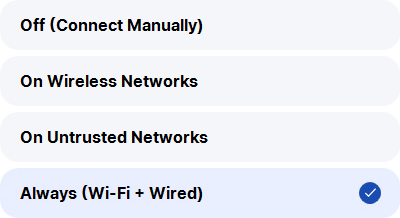
You can also click the Trust link to add your current network to the list of Trusted networks.

macOS
This can happen for a number of reasons, including a weak signal, if your network changes, or if your device enters Sleep/Hibernation mode while the VPN is active. If you often switch networks or if you travel frequently, the app will instantly detect any time you get disconnected abruptly.
Once your network is established the connection will be immediately restored. This helps ensure that your location is private and your network remains secure at all times. Alternatively, you can choose to leave this option disabled if you would prefer to connect manually instead.
If used alongside the Keep Alive on Sleep option, you will also remain connected when your device enters Sleep/Hibernation mode.
Connect Automatically
How to connect automatically on your Mac computer:
Open VirtualShield VPN and log in to your account, if you are not logged in already.
For more help logging in and activating protection, see our support article.
In the Secure VPN section, click the  slider icon to open the VPN Settings panel.


Select the Advanced Settings tab to customize your  Advanced VPN Settings.

Select Connect Automatically to expand the list of options.

Choose your desired option, then click the close button to return to the VPN screen.
- Off (Connect Manually) Never connect automatically. Toggle the power button in order to connect.
- On Wireless Networks Automatically connect on wireless networks, and ignore wired networks.
- On Untrusted Networks Automatically connect on networks that are not in your Trusted networks.
- Always (Wi-Fi + Wired) Always connect automatically. Includes both wireless and wired networks.
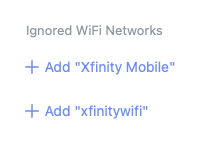
You can also click the Add link to add your current network to the list of Trusted networks.
iOS
This can happen for a number of reasons, including a weak signal, if your network changes, or if your device enters Sleep/Hibernation mode while the VPN is active. If you often switch networks or if you travel frequently, the app will instantly detect any time you get disconnected abruptly.
Once your network is established the connection will be immediately restored. This helps ensure that your location is private and your network remains secure at all times. Alternatively, you can choose to leave this option disabled if you would prefer to connect manually instead.
If used alongside the Keep Alive on Sleep option, you will also remain connected when your device enters Sleep/Hibernation mode.
Connect Automatically
How to connect automatically on your Apple iPhone/iPad:
Open the Settings app on your Apple iPhone/iPad.

If you can’t find this icon,
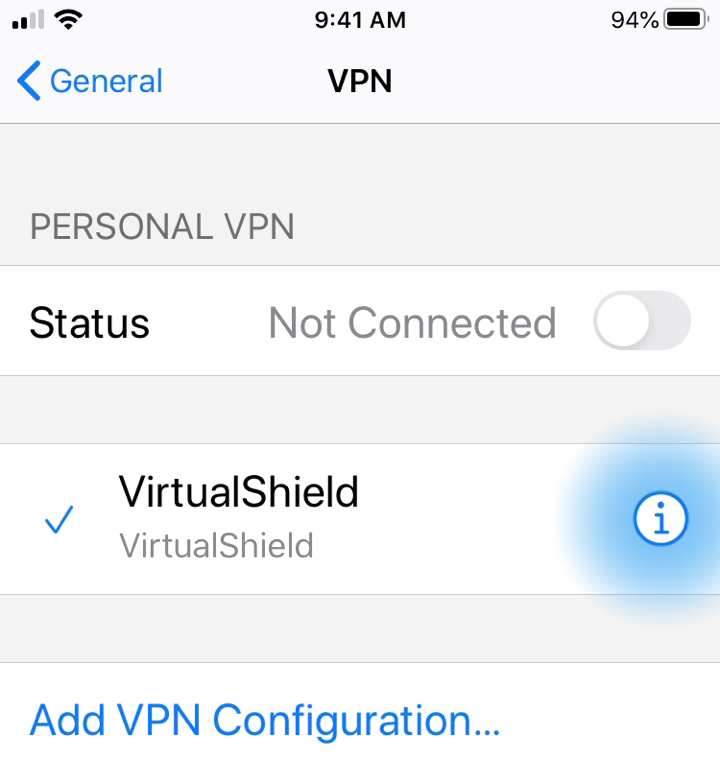
Navigate to General VPN, then tap the information icon next to VirtualShield.
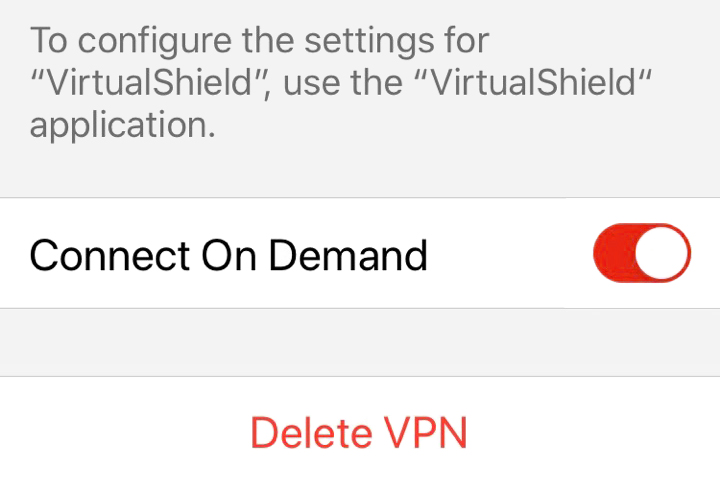
Toggle the Connect On Demand option on or off, then tap the back arrow to return to the VPN screen.
Android
This can happen for a number of reasons, including a weak signal, if your network changes, or if your device enters Sleep/Hibernation mode while the VPN is active. If you often switch networks or if you travel frequently, the app will instantly detect any time you get disconnected abruptly.
Once your network is established the connection will be immediately restored. This helps ensure that your location is private and your network remains secure at all times. Alternatively, you can choose to leave this option disabled if you would prefer to connect manually instead.
If used alongside the Keep Alive on Sleep option, you will also remain connected when your device enters Sleep/Hibernation mode.
Connect Automatically
How to connect automatically on your Android phone/tablet:
Open VirtualShield VPN and log in to your account, if you are not logged in already.
For more help logging in and activating protection, see our support article.
Tap the slider icon near the top-right to open the VPN Settings panel.

Overview icon near the bottom to return to the Home/Overview screen.

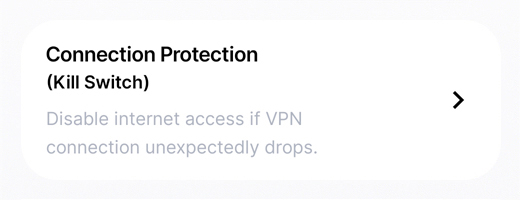
Select  Connection Protection to expand the list of options.
Tap the gear icon next to VirtualShield in the list of VPN connections.
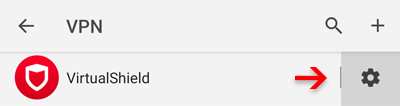
Toggle the Always-on VPN option on or off, then tap the back arrow to return to the Home/Overview screen.

Common Questions
Can I connect automatically when I’m away from home?
Yes, you can! Simply choose the On Wireless Networks option, or select On Untrusted Networks add your home network to the list of Trusted networks.
Can I connect automatically on my Chromebook?
Absolutely! You can follow the Android steps above in order to connect automatically on a Chromebook/Pixelbook, or on your Amazon Kindle/Fire tablet.