 Overview
This article will help you determine if you have the latest version of the VirtualShield Antivirus app installed on your various devices. It will also teach you how to check for app updates, and how to update when new versions become available for download.
Additionally, you will learn how to check for virus threat definition updates. This is an important step due to the fact that new forms of harmful viruses and malware are created by hackers every single day. These simple steps will help you keep your devices secure.

 Windows
  macOS Android
Windows
On most devices, VirtualShield will update automatically as soon as a new app version becomes available. Alternatively, you can check for updates by opening your App Settings. We recommend checking for app updates periodically to ensure that your device remains fully up-to-date.
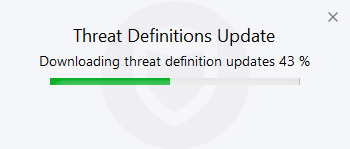
The same way you check for app updates, you can check for virus threat definition updates to make certain your device is secure against new forms of dangerous threats. In most situations new threat definitions will be downloaded automatically, but you can check for updates anytime.
If you have a slow connection, a weak signal or if your device is low on battery, you can also re-install the latest version of the app from your
In this section
Check for App Updates
How to check for app updates on your Windows computer:
Open VirtualShield Antivirus and log in to your account, if you are not logged in already.
For more help logging in and activating protection, see our support article.
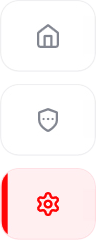
Click the gear icon on the sidebar to customize your  App Settings.
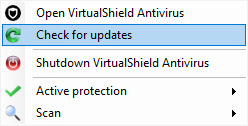
Alternatively, you can right-click the
Your current version will be displayed on this screen. Click Check for updates next to Antivirus application update to determine if you have the latest version.
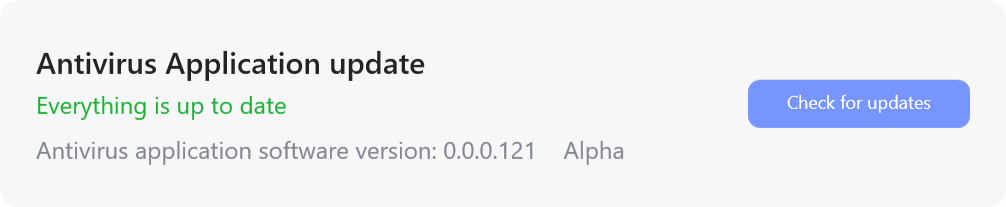
If a new app version is available, it will begin to download. Once the update is complete, the app will automatically exit and re-launch.
Threat Definition Updates
How to check for threat definition updates on your Windows computer:
Open VirtualShield Antivirus and log in to your account, if you are not logged in already.
For more help logging in and activating protection, see our support article.
Click the gear icon on the sidebar to customize your App Settings.
Alternatively, you can right-click the
Your definition version will be displayed on this screen. Click Check for updates next to Threat definition update to determine if you have the latest version.
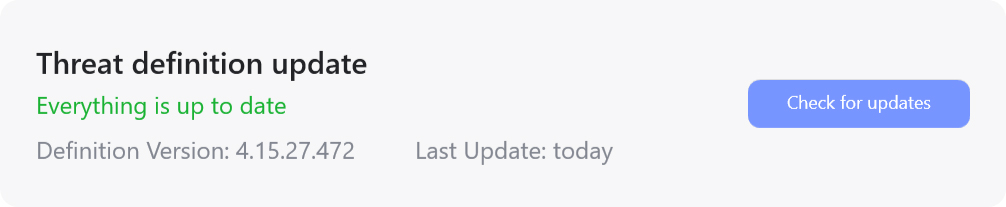
If a new definition version is available, it will begin to download. Once the update is complete, no further action is required.
macOS
On most devices, VirtualShield will update automatically as soon as a new app version becomes available. Alternatively, you can check for updates by opening your App Settings. We recommend checking for app updates periodically to ensure that your device remains fully up-to-date.
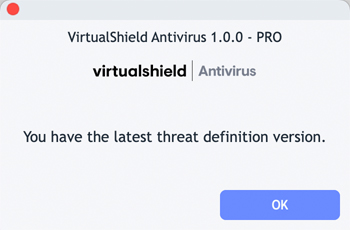
The same way you check for app updates, you can check for virus threat definition updates to make certain your device is secure against new forms of dangerous threats. In most situations new threat definitions will be downloaded automatically, but you can check for updates anytime.
If you have a slow connection, a weak signal or if your device is low on battery, you can also re-install the latest version of the app from your
In this section
Check for App Updates
How to check for app updates on your Mac computer:
Open VirtualShield Antivirus and log in to your account, if you are not logged in already.
For more help logging in and activating protection, see our support article.
Click the  display icon on the sidebar to customize your
  Advanced Settings.

Below Antivirus updates on the right, click the View link.
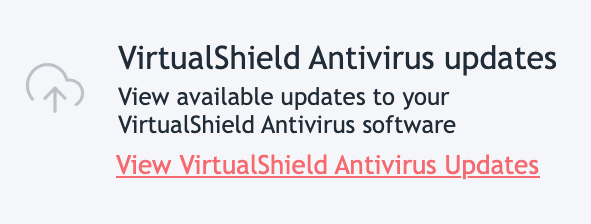
Your current version will be displayed on this screen. Click Check for Antivirus Updates to determine if you have the latest version.
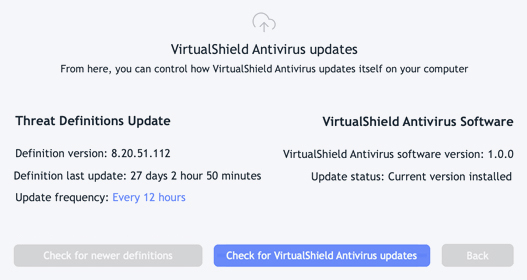
If a new app version is available, it will begin to download. Once the update is complete, the app will automatically exit and re-launch.
Threat Definition Updates
How to check for threat definition updates on your Mac computer:
Open VirtualShield Antivirus and log in to your account, if you are not logged in already.
For more help logging in and activating protection, see our support article.
Click the display icon on the sidebar to customize your Advanced Settings.
Below Antivirus updates on the right, click the View link.
Your definition version will be displayed on this screen. Click Check for Newer Definitions to determine if you have the latest version.
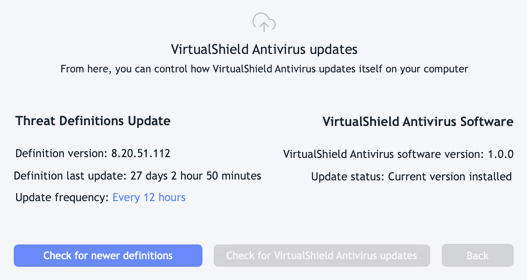
If a new definition version is available, it will begin to download. Once the update is complete, no further action is required.
Android
On most devices, VirtualShield will update automatically as soon as a new app version becomes available. Alternatively, you can check for updates by opening your App Settings. We recommend checking for app updates periodically to ensure that your device remains fully up-to-date.
The same way you check for app updates, you can check for virus threat definition updates to make certain your device is secure against new forms of dangerous threats. In most situations new threat definitions will be downloaded automatically, but you can check for updates anytime.
If you have a slow connection, a weak signal or if your device is low on battery, you can also re-install the latest version of the app from your
In this section
Check for App Updates
How to check for app updates on your Android phone/tablet:
Open VirtualShield Antivirus and log in to your account, if you are not logged in already.
For more help logging in and activating protection, see our support article.
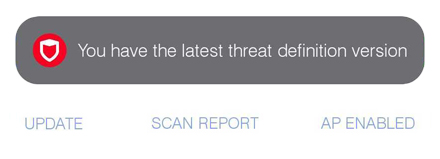
Tap the Menu icon near the top-left, then select Update.

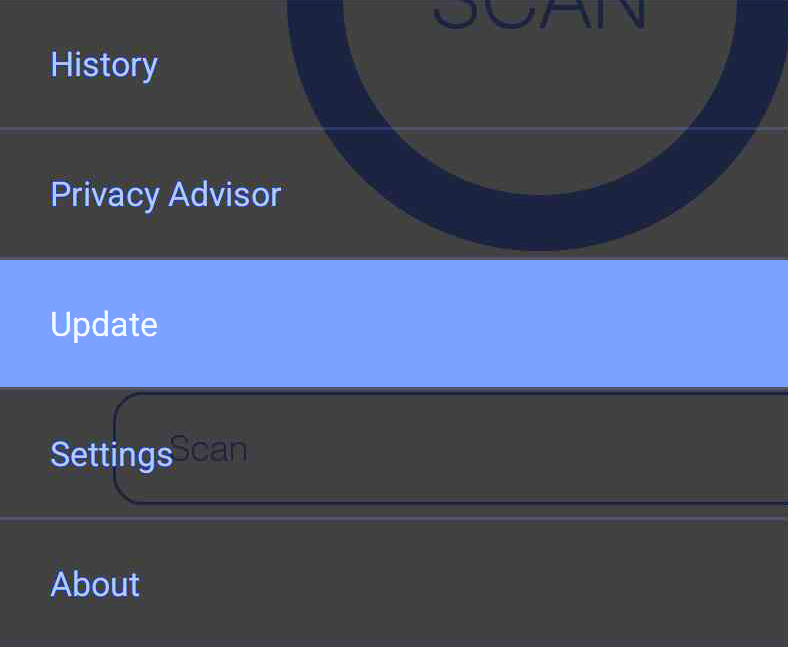
Alternatively, tap the Update icon near the bottom of theHome/Status screen.
Your current version will be displayed on this screen. Tap Check for Antivirus Updates to determine if you have the latest version.
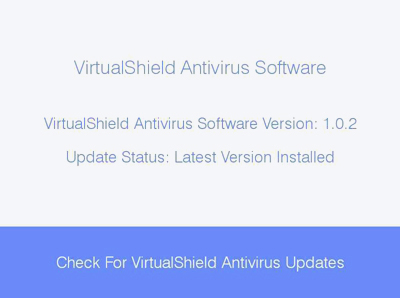
If a new app version is available, it will begin to download. Once the update is complete, the app will automatically exit and re-launch.
Threat Definition Updates
How to check for threat definition updates on your Android phone/tablet:
Open VirtualShield Antivirus and log in to your account, if you are not logged in already.
For more help logging in and activating protection, see our support article.
Tap the Menu icon near the top-left, then select Update.
Alternatively, tap the Update icon near the bottom of the
Your definition version will be displayed on this screen. Tap Check for Newer Definitions to determine if you have the latest version.
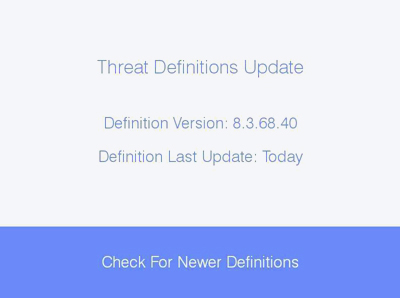
If a new definition version is available, it will begin to download. Once the update is complete, no further action is required.
Common Questions
Do I need to update the app to be protected?
No, manually checking for updates is entirely optional. It is not required in order to be protected. However, we recommend periodically checking for updates to ensure your device remains secure against the latest threats.
Will the app install updates automatically?
Yes, it will! Manually checking for updates is entirely optional. On most devices updates will be installed automatically as long as you have an internet connection.
Why does the app look different on my device?
Looking for the